MASTERING GITHUB

99

99Typicals and examples

This is a chapter level lead-in section.

Fusce dapibus volutpat semper. Proin ante ante, tincidunt id sodales vel, vulputate tristique nibh.

99.1Supplementary section

Supplementary section

Donec nec purus nec lacus tempor aliquam in sit amet lacus. Donec dignissim orci blandit dui placerat, vel pharetra magna consequat. Vivamus iaculis mauris sit amet ultrices malesuada. Ut fermentum sapien eu malesuada imperdiet. Curabitur eget ipsum eget risus accumsan interdum at eu mi. Suspendisse faucibus commodo turpis, sed feugiat felis tempor eget. Donec iaculis urna sed viverra malesuada. Phasellus at imperdiet erat. Donec tincidunt dolor vel commodo condimentum. Vivamus venenatis purus vitae luctus semper. Vivamus consequat interdum ligula, vitae tristique nisl viverra sit amet. In vitae tortor risus. Integer vestibulum semper gravida.

99.1.1Supplementary sub-section

Supplementary section

Donec nec purus nec lacus tempor aliquam in sit amet lacus. Donec dignissim orci blandit dui placerat, vel pharetra magna consequat. Vivamus iaculis mauris sit amet ultrices malesuada. Ut fermentum sapien eu malesuada imperdiet. Curabitur eget ipsum eget risus accumsan interdum at eu mi. Suspendisse faucibus commodo turpis, sed feugiat felis tempor eget. Donec iaculis urna sed viverra malesuada. Phasellus at imperdiet erat. Donec tincidunt dolor vel commodo condimentum. Vivamus venenatis purus vitae luctus semper. Vivamus consequat interdum ligula, vitae tristique nisl viverra sit amet. In vitae tortor risus. Integer vestibulum semper gravida.

Supplementary Inline Section

Supplementary section

Donec nec purus nec lacus tempor aliquam in sit amet lacus. Donec dignissim orci blandit dui placerat, vel pharetra magna consequat. Vivamus iaculis mauris sit amet ultrices malesuada. Ut fermentum sapien eu malesuada imperdiet. Curabitur eget ipsum eget risus accumsan interdum at eu mi. Suspendisse faucibus commodo turpis, sed feugiat felis tempor eget. Donec iaculis urna sed viverra malesuada. Phasellus at imperdiet erat. Donec tincidunt dolor vel commodo condimentum. Vivamus venenatis purus vitae luctus semper. Vivamus consequat interdum ligula, vitae tristique nisl viverra sit amet. In vitae tortor risus. Integer vestibulum semper gravida.

MASTERING GITHUB

X

XLead-in by chapter

This is a chapter level lead-in section.

The first section on a new web page must contain enough text to accommodate a fully expanded left left sidebar table of contents.

This can require multiple sections, subsections and inline sections to be incorporated into the first <section> element of the page.

These are referred to as supplementary sections, subsections and inline sections. An example of each is included below.

Fusce dapibus volutpat semper. Proin ante ante, tincidunt id sodales vel, vulputate tristique nibh. Aenean est odio, maximus at iaculis dignissim, viverra ultricies libero. Aliquam quis ornare est. Curabitur imperdiet tincidunt gravida. Nunc interdum tincidunt neque eget vehicula. Duis nec mollis massa, eu volutpat velit. Praesent id tincidunt sapien.

Nam et nunc purus. Phasellus commodo nulla id scelerisque semper. Phasellus eleifend neque ac finibus semper. Vestibulum in elementum risus, ut vehicula leo. Nulla dapibus felis erat, ac auctor erat sagittis eget. Nam ultrices vestibulum feugiat. Suspendisse imperdiet mi eu lectus vehicula volutpat. Aenean facilisis enim nunc, id dignissim ex ultricies in. Ut porta maximus ligula, eget malesuada magna congue sit amet. Donec vestibulum, nisl eu pulvinar laoreet, ligula lorem pellentesque lacus, et fermentum tortor sem ac quam. Nulla quis felis viverra, mollis augue eu, placerat lectus.

MASTERING GITHUB

X.YLead-in by section

This is a section level lead-in section.

The first section on a new web page must contain enough text to accommodate a fully expanded left left sidebar table of contents.

This can require multiple sections, subsections and inline sections to be incorporated into the first <section> element of the page.

These are referred to as supplementary sections, subsections and inline sections. An example of each is included below.

Fusce dapibus volutpat semper. Proin ante ante, tincidunt id sodales vel, vulputate tristique nibh. Aenean est odio, maximus at iaculis dignissim, viverra ultricies libero. Aliquam quis ornare est. Curabitur imperdiet tincidunt gravida. Nunc interdum tincidunt neque eget vehicula. Duis nec mollis massa, eu volutpat velit. Praesent id tincidunt sapien.

Nam et nunc purus. Phasellus commodo nulla id scelerisque semper. Phasellus eleifend neque ac finibus semper. Vestibulum in elementum risus, ut vehicula leo. Nulla dapibus felis erat, ac auctor erat sagittis eget. Nam ultrices vestibulum feugiat. Suspendisse imperdiet mi eu lectus vehicula volutpat. Aenean facilisis enim nunc, id dignissim ex ultricies in. Ut porta maximus ligula, eget malesuada magna congue sit amet. Donec vestibulum, nisl eu pulvinar laoreet, ligula lorem pellentesque lacus, et fermentum tortor sem ac quam. Nulla quis felis viverra, mollis augue eu, placerat lectus.

99.2X.Y Section (new row)

This is a complete section with left side bar.

Sections are numbered X.Y. With X being the chapter number and Y the section number within the chapter.

Generally, each section has its own web page.

Sections have a thick over-line and use the h2 heading level. Sections support both left and right side bars.

Each section is given an ID in the form js--XXYY00 (where XX is the chapter number and YY the section number).

Lorem ipsum dolor sit amet, consectetur adipiscing elit. Duis dapibus dolor et ante condimentum, eu rutrum turpis facilisis. Etiam vel massa ac tellus laoreet interdum nec vitae magna. Vestibulum sollicitudin consectetur enim quis interdum. Phasellus id arcu pretium, consequat mauris vitae, aliquet dui. Nam condimentum convallis lorem a tempus. Mauris arcu neque, fringilla vel viverra vitae, hendrerit id dui. Donec volutpat maximus arcu, eget vehicula lacus tempor eu. Phasellus sed neque hendrerit, scelerisque ligula in, vulputate augue. Curabitur finibus neque non varius convallis. In eu ex vel ligula cursus porta. Donec odio dolor, lacinia non nisl nec, lobortis laoreet justo. Sed hendrerit sodales neque at euismod. Vestibulum elementum ultrices commodo. Mauris leo odio, efficitur et ante non, molestie gravida mi. Vivamus congue augue ut orci fringilla, quis commodo diam consequat. Suspendisse a magna pretium lorem sodales ornare eu nec magna.


99.2.1X.Y.Z Sub-section (new row)

This is a complete subsection with left side bar.

Subsections are numbered X.Y.Z. With X being the chapter number, Y the section number within the chapter and Z the subsection number within the section.

Generally, each subsection will be included in the web page for its associated section.

Subsections have no over-line and use the h3 heading level. Subsections support both left and right side bars.

Each section is given an ID in the form js--XXYYZZ (where XX is the chapter number, YY the section number and ZZ the subsection number).

Lorem ipsum dolor sit amet, consectetur adipiscing elit. Duis dapibus dolor et ante condimentum, eu rutrum turpis facilisis. Etiam vel massa ac tellus laoreet interdum nec vitae magna. Vestibulum sollicitudin consectetur enim quis interdum. Phasellus id arcu pretium, consequat mauris vitae, aliquet dui. Nam condimentum convallis lorem a tempus. Mauris arcu neque, fringilla vel viverra vitae, hendrerit id dui. Donec volutpat maximus arcu, eget vehicula lacus tempor eu. Phasellus sed neque hendrerit, scelerisque ligula in, vulputate augue. Curabitur finibus neque non varius convallis. In eu ex vel ligula cursus porta. Donec odio dolor, lacinia non nisl nec, lobortis laoreet justo. Sed hendrerit sodales neque at euismod. Vestibulum elementum ultrices commodo. Mauris leo odio, efficitur et ante non, molestie gravida mi. Vivamus congue augue ut orci fringilla, quis commodo diam consequat. Suspendisse a magna pretium lorem sodales ornare eu nec magna.

Inline section (new row)

Inline sections are unnumbered (the inline section title is left aligned with the edge of the central web page area).

An inline section is always included in the web page of its associated section/subsection &c.

Inline sections have no over-line and use the h4 heading level. Inline sections support both left and right side bars.

Each inline section is given an ID in the form js--XXYYZZL (where XX is the chapter number, YY the section number and ZZ the subsection number. L represents the letters a, b, c, d...&c., these are used in sequence).

Lorem ipsum dolor sit amet, consectetur adipiscing elit. Duis dapibus dolor et ante condimentum, eu rutrum turpis facilisis. Etiam vel massa ac tellus laoreet interdum nec vitae magna. Vestibulum sollicitudin consectetur enim quis interdum. Phasellus id arcu pretium, consequat mauris vitae, aliquet dui. Nam condimentum convallis lorem a tempus. Mauris arcu neque, fringilla vel viverra vitae, hendrerit id dui. Donec volutpat maximus arcu, eget vehicula lacus tempor eu. Phasellus sed neque hendrerit, scelerisque ligula in, vulputate augue. Curabitur finibus neque non varius convallis. In eu ex vel ligula cursus porta. Donec odio dolor, lacinia non nisl nec, lobortis laoreet justo. Sed hendrerit sodales neque at euismod. Vestibulum elementum ultrices commodo. Mauris leo odio, efficitur et ante non, molestie gravida mi. Vivamus congue augue ut orci fringilla, quis commodo diam consequat. Suspendisse a magna pretium lorem sodales ornare eu nec magna.

This is an additional section row. Additional section rows can follow any other type of section and are generally used to align sidebars with a particular paragraph (if the paragraph is placed in an additional row, the sidebar for that additional row will align with the first line of the paragraph within it).

additional section rows are constructed with <div> elements (rather than <section> elements and consequently do not require a heading).

Additional rows are constructed with <div> elements (rather than <section> elements) and consequently do not require a heading. Additional rows support both left and right side bars.

As many additional section rows can be added as are needed.

Generally, additional rows are not given an ID. If necessary (for navigation purposes), additional rows can be given an ID in the form used for inline sections: in the form js--XXYYZZL (where XX is the chapter number, YY the section number and ZZ the subsection number. L represents the letters a, b, c, d...&c., these are used in sequence).

Lorem ipsum dolor sit amet, consectetur adipiscing elit. Duis dapibus dolor et ante condimentum, eu rutrum turpis facilisis. Etiam vel massa ac tellus laoreet interdum nec vitae magna. Vestibulum sollicitudin consectetur enim quis interdum. Phasellus id arcu pretium, consequat mauris vitae, aliquet dui. Nam condimentum convallis lorem a tempus. Mauris arcu neque, fringilla vel viverra vitae, hendrerit id dui. Donec volutpat maximus arcu, eget vehicula lacus tempor eu. Phasellus sed neque hendrerit, scelerisque ligula in, vulputate augue. Curabitur finibus neque non varius convallis. In eu ex vel ligula cursus porta. Donec odio dolor, lacinia non nisl nec, lobortis laoreet justo. Sed hendrerit sodales neque at euismod. Vestibulum elementum ultrices commodo. Mauris leo odio, efficitur et ante non, molestie gravida mi. Vivamus congue augue ut orci fringilla, quis commodo diam consequat. Suspendisse a magna pretium lorem sodales ornare eu nec magna.

99.3Lists & hanging indents

Lists come in two forms: numbered and unnumbered; unnumbered lists are also used to form hanging paragraphs (hanging indents) for notes.

99.3.1Numbered lists

With Numbered lists, each entry in the list is preceded by a number in a circle:

  1. List entry 1

  2. List entry 2

  3. List entry 3

  4. List entry 4

  5. List entry 5

Up to 99 list entries can be made is using the Equity fonts. If using the PS-Index font, the list can only have 26 entries.

Numbered lists use the <ol> (ordered list) elements with class="list-num".

Applying <ol class="list-num" start="5"> will start the numbering at 5 (or any other number that is entered).

99.3.2Unnmbered lists

With unnumbered lists, each entry is prefixed with a bullet point:

  • List entry

  • List entry

  • List entry

  • List entry

  • List entry

Unnumbered lists can have any number of list entries.

Unnumbered lists use the <ul> (unnumbered list) elements with class="list-no-num".

99.3.3Hanging indents

Hanging indents are used as notational paragraphs, these are unnumbered lists (<ul> elements) with class="note". Hanging indents are prefixed with the word “Note:” and are in italics and are indented:

  • Supernatant is the water in the settling tank that sits above the sediment, this is decanted and returned to the works inlet for treatment.

Hanging indents can have multiple paragraphs:

  • First paragraph with note and hanging indent — Supernatant is the water in the settling tank that sits above the sediment.

Second paragraph without the note inidcator

99.4Links (internal & external)

Links come in two broad categories: external links (links to other websites), internal links (links to other parts of the web site).

External links start with either http:// or https://. Internal links just have the path and filename within the directory structure.

The first of these, internal links, can be links to a point on another page within the website, or can be a link to a point on the same page. If the link is to a point on the same page, the browser will slow scroll to that point.

Examining each in turn:

99.4.1External links

The following is a typical external (offsite) link: Practical Typography. Such links have the following form:

<a class="hlink" href="http://practicaltypography.com/">Practical Typography</a>

All external links have the class hlink. This class applies a small capitals font and a light grey background that stands out clearly on a web page; hovering over the link will cause a dark grey bottom border to be displayed.

99.4.2Internal links to a different page

Linking to another page within the website will open that page with the top of the page displayed in the browser. Such a link has the following appearance:

<a class="hlink" href="98-00-blank.html">Blank Page</a>

It has the following appearance: Blank Page.

Internal links simply have an href to the HTML page in question. The web page is not preceded by http(s)://, if this is missing the browser knows to look in the current folder structure.

Links to other web pages within the same web site use the hlink class, just like external links.

99.4.3Link to a point on another page

It is possible to link to a particular point on another web page within the website if that point has been given a unique ID number. All sections within the website (lead-in, section, subsection, inline &c.) are given a unique number in the form js--XXYYZZ; to link to that particular point, the filename of the web page in the href attribute is followed by a # and the ID reference.

<a class="hlink" href="98-00-blank.html#js--980200">Section 98.2</a>

The above links to Section 98.2 on the web page 98-00-blank.html.

Again such internal links have the hlink class.

99.4.4Link to a point on the same page

Links to a point on the same page are usually to sections (from the table of contents) or to figures, tables, code fragments &c. (in fact any numbered item). If the link is on the same page, the browser will visibly scroll to the specified point on the page in a given time period (rather than jumping instantly to it). This is called soft scrolling and is achieved with the jQuery scrollTop function contained in the local jQuery file (xx-xx-scroll.js).

For a link to work with the soft scroll function the <a> must have a jQuery class of js--sc-[ID] where [ID] is the ID number of the point to be scrolled to, this point must have an <id> with the same number, but without the sc- i.e. <div ... id="js--[ID]">. The [ID] has different formats for different items:

ITEM [ID] FORMAT EXAMPLE
Lead-in section XX0000 Lead in section X
id="js--030000"
Section XXYY00 Section X.Y
id="js--030100"
Subsection XXYYZZ Subsection X.Y.Z
id="js--030101"
Inline section XXYYZZa Inline section a of section X.Y.Z
id="js--030101a"
Figure fXX-YY Figure X.Y
id="js--f99-01"
Table tXX-YY Table X.Y
id="js--t99-01"
Code cXX-YY Code X.Y X
id="js--c99-01"
Equation eXX-YY Eqation X.Y
id="js--e99-01"
Footnote fnXX Footnote XX
id="js--fn01"
Table 99.1   ID formats for different items

To enter a soft scroll link to a point within the same page enter a js--sc-[ID] class in the link:

<a class="xref js--sc-f99-01" href="#">Figure 99.1</a></p>

The href itself can be just the # placeholder; the browser will know to look on the same page.

Internal links to a point on the same page use the class xref; this is less noticeable on the page: Figure 99.1.

Other links are Table 99.1, Code 99.1 and Equation 99.1

99.4.5Tested and untested links

When coding a web page, the links tend to be coded on the fly (possibly to some section further down the page that hasn’t been written yet) or copied from some parent document. Once the page is complete, it is prudent to test all the links on the page.

The problem here is knowing where the links are (it may not be obvious and it can be easy to overlook the more subtle ones); to get around this problem, the class utx should be added to the link when it is first coded:

<a class="hlink utx" href="98-00-blank.htmll#js--980200">Section 1</a>

This places a bright red dot before the link: Blank Page

Once the link has been tested, the utx class can be removed from the link. The class name utx (untested) has been selected because it is a combination of letters that does not naturally occur in English and this means that searching for it in the HTML only identifies untested links.

99.46Link summary

External link: Practical Typography:

<a class="hlink" href="http://practicaltypography.com/">Practical Typography</a>

Internal link to a point on another page: Section 98.2:

<a class="hlink" href="98-00-blank.html#js--980200">Section 98.2</a>

Internal link to a point on the same page: Figure 99.1:

<a class="xref js--sc-f99-01" href="#">Figure 99.1</a></p>

99.5Tables & footnotes

This section contains examples of typical table styles that can be found in the document.

99.5.1The standard table

The following is a standard table. By default it has borders at the bottom of each row, a header row and a caption row. Borders can be turned off if required (see the area 1 & 2 rows) by adding the .noborder class to the row, e.g. <tr class="noborder">.

Section Name Purpose
1 Introduction This section, an introduction to the website and what it’s for
2 Fairfax WTW
An example document
A worked example showing an extract from a typical engineering document and how it will appear on the website
3 Website fundamentals Explains how the website is structured, how it works and how to use the components of the website
4 A complete set of examples Example pages containing all the individual components of the website for re-use
5 Downloads The entire website (albeit with google fonts) zipped up and ready for download
Appendices Glossary, references and appendices Defines common terms, references to other websites and other useful supporting information
Table 99.2   Document sections (standard)

The height of each row is set with <td> element with the leading (one per row) class, this holds a div with a style attribute that sets the height of the row (style="min-height: 3em").

The width of each column in set in the heading <th> element by adding a style="width: x%" attribute.

99.5.2Dense tables

This is a dense table. It has borders just as the standard table above, but is slightly wider and uses a smaller font size — typically for things like IO tables

Symbol Address Rack/slot Card Signal Range Description
PM001_RUNNING I 00.0 1-1/04 32×DI 24 VDC 0/1 Inlet pump 1 - running
PM001_HEALTHY I 00.1 1-1/04 32×DI 24 VDC 0/1 Inlet pump 1 - healthy
PM001_AUTO I 00.2 1-1/04 32×DI 24 VDC 0/1 Inlet pump 1 - auto
MX001_RUNNING I 00.3 1-1/04 32×DI 24 VDC 0/1 Inlet contact tank mixer 1 - running
MX001_HEALTHY I 00.4 1-1/04 32×DI 24 VDC 0/1 Inlet contact tank mixer 1 - healthy
MX001_AUTO I 00.5 1-1/04 32×DI 24 VDC 0/1 Inlet contact tank mixer 1 - auto
SP001_RUNNING I 00.6 1-1/04 32×DI 24 VDC 0/1 Inlet sampling pump 1 - running
SP001_HEALTHY I 00.7 1-1/04 32×DI 24 VDC 0/1 Inlet sampling pump 1 - healthy
Table 99.3   Dense table

Column width and height is set in exactly the same was as for standard tables.

99.5.3Incidental tables

Incidental tables are used to add clarifications or additional points (in a similar fashion to sidebars) into the main body of the text.

Incidental Table Heading

Word has a couple of undocumented features; just type =lorem() on a blank line and hit enter to get lorem ipsum padding text (add a number between the brackets to get that many lines of lorem ipsum)..

Word has a couple of undocumented features; just type =lorem() on a blank line and hit enter to get lorem ipsum padding text (add a number between the brackets to get that many lines of lorem ipsum)..

99.5.4Footnotes

Footnotes†1 are used to reference a particular item in the text and add a clarification or explanation; e.g. explaining an acronym.

†1 Footnotes usually provide additional information or references for particular items in the main body of the text — bibliographical information, clarification etc.

Additional paragraphs can also be added to footnotes:

†1 Footnotes usually provide additional information or references for particular items in the main body of the text — bibliographical information, clarification etc.
Additional paragraph here.

It is possible to combine multiple footnotes†1 in a single table as shown here. Footnotes†2 are indicated using the † (&dagger;) symbol followed by a number (indicating the footnote) in superscript <sup>.

†1 This is the first footnote
†2 This is the second footnote

99.6Basic figures

This section contains examples of typical figure arrangements that can be found throughout the website. These figures are not part of a lightbox arrangement (that is to say, clicking the image will do nothing).

Full width figure. Full width figures occupy a maximum width of 944 px.

Figure 99.1 - Full width image
Figure 99.1   Full width figure

Half width figure. Half width figures occupy a maximum width of 456 px each.

Figure 99.2 - Tall image
Figure 99.2   Tall image
Figure 99.3 - short image
Figure 99.3   short image

One third width figure. One third width figures occupy a maximum width of 295 px each.

Figure 99.4 - short image
Figure 99.4   short image
Figure 99.5 - Tall image
Figure 99.5   Tall image
Figure 99.6 - short image
Figure 99.6   short image

Asymmetric display, ⅓ and ⅔. The first (narrow) image has a maximum width of 295 px, the second (wide) image has a maximum width of 613 px

Figure 99.7 - 1/3 width
Figure 99.7   ⅓ width
Figure 99.8 - 2/3 width
Figure 99.8   ⅔ width

99.7Figures & Lightbox

Figures can be displayed in a "lightbox" arrangement, that is to say if the image is clicked, a full size version is displayed in (semi) full screen mode.

The lightbox uses a jQuery plugin (lightbox2) and has an associated CSS file that applies styling.

This lightbox mode can be used to scroll through all the figures that are selected for lightbox control.

Images are assigned to the lightbox by placing an <a> tag around the image, the <a>tag must have the attribute data-lightbox="name-of-group".

All images that have the same name-of-group will appear in the lightbox. The convention is (if only one group is to be displayed) that the name-of-group is set to "fig-set".

The image that appears in the lightbox is specified in the href attribute; this is generally the same as the <img src..., if a different (larger) image is required, it can be specified here.

The data-title attribute contains the title for the image (this should be set the same as the figure caption).

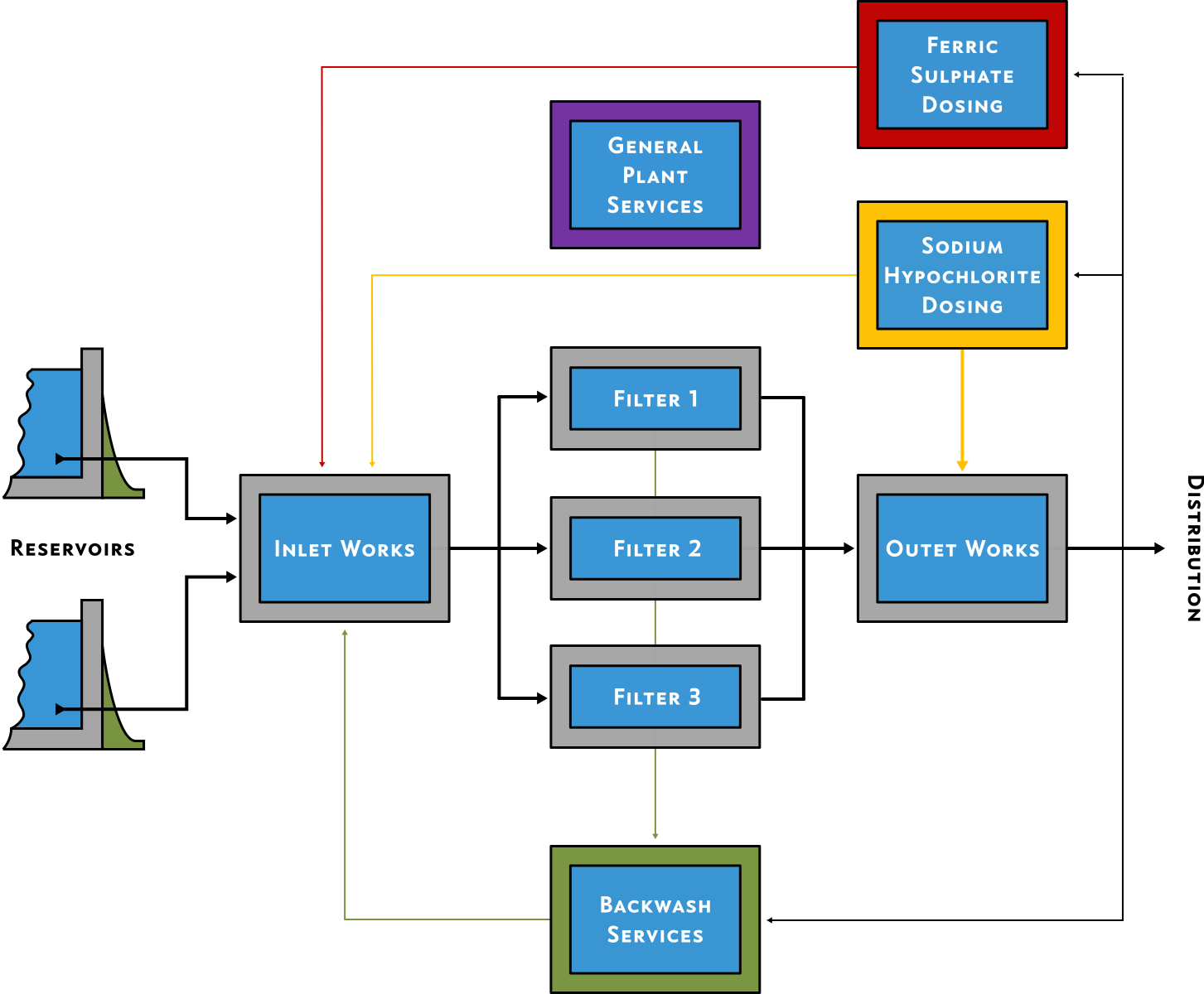
Figure 99.9 - Fairfax WTW flow diagram
Figure 99.9   Fairfax WTW flow diagram

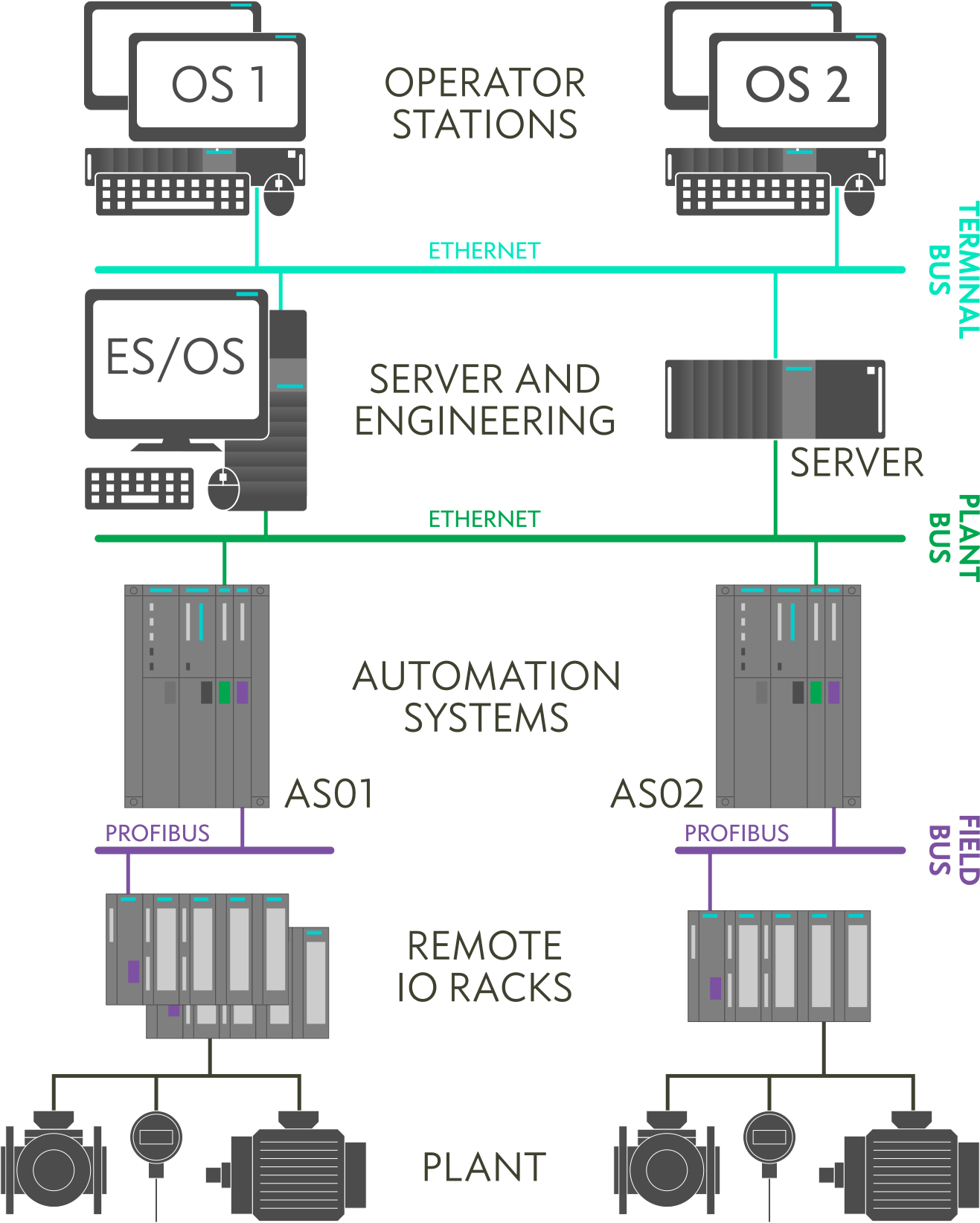
This is the second image in the lightbox.

Figure 99.10 - Fairfax WTW control system
Figure 99.10   control system

The following figures are in the lightbox (showing different height and width responses).

Firstly, half width:

Figure 99.11 - Half width
Figure 99.11   Half width
Figure 99.12 - Half width
Figure 99.12   Half width

secondly, ⅓ width:

Figure 99.13 - short image
Figure 99.13   short image
Figure 99.14 - Tall image
Figure 99.14   Tall image
Figure 99.15 - short image
Figure 99.15   short image

Finally, asymmetric display entries:

Figure 99.16 - 1/3 width image
Figure 99.16   ⅓ width
Figure 99.17 - 2/3 width
Figure 99.17   ⅔ width

99.8Code fragments

The following code fragments are displayed using google-code-prettify; a JS plugin that formats code for display on webpages.

This plugin can format various code languages (HTML, CSS, Java Script, C &c.); it does this by applying certain classes to the code section when the website loads.

These classes are formatted to try to reflect the colours used by the Brackets text editor (there are some differences, these are determined by the constraints of the plugin).

Code that is to be displayed must by within a <pre> element and this element must have the class="prettyprint" attribute.

The following are examples of code fragments:

99.8.1Code in complex containers

HTML in a standard block with header (filename line) and caption.

The text is formatted in an approximation of the Brackets colour scheme. The background line shading is done within the prettifylines.css file.

html
<nav>                            <!-- TOP NAVIGATION BAR -->
    <div class="top-nav">
        <div class="rg-row">
            <a class="nav-wide" href="#"><span class="top-nav-icon">l</span><span class="top-nav-text">Prev. section</span></a>
            <a class="nav-wide" href="#"><span class="top-nav-icon">u</span><span class="top-nav-text">Prev. chapter</span></a>
            <a class="nav-wide nav-home" href="#"><span class="top-nav-text">Home</span><span class="top-nav-icon">h</span></a>
            <a class="nav-narrow js--sc-top" href="#"><span class="top-nav-icon">t</span><span class="top-nav-text">Top</span></a>
            <a class="nav-narrow" href="#"><span class="top-nav-text">Home</span><span class="top-nav-icon">h</span></a>
            <a class="nav-wide" href="#"><span class="top-nav-text">Next chapter</span><span class="top-nav-icon">d</span></a>
            <a class="nav-wide" href="#"><span class="top-nav-text">Next section</span><span class="top-nav-icon">r</span></a>
        </div>
    </div>
</nav>                            <!-- END OF TOP NAVIGATION -->
Code 99.1   Code Fragment — html extract

The code behind this is:

<pre class="prettyprint linenums lang-html" id="js--c99-01">

HTML with download link, text wrapping and false numbering
(numbering starts 25):

index.html
<p class="main-text">Lorem ipsum dolor sit amet, consectetuer adipiscing elit. Aenean commodo ligula eget dolor. Aenean massa. Cum sociis natoque penatibus et magnis dis parturient montes, nascetur ridiculus mus.</p>
            </div>
           
            <div class="side-area">
                <div class="side-box">
                    First side bar entry
                </div>
                <div class="side-box">
                    Second side bar entry
                </div>
                <div class="side-box">
                    Third side bar entry
                </div>
            </div>
           
            <div class="clearfix"></div>
Code 99.2   index.html (side area text) a

The code behind this is:

<pre class="prettyprint linenums:25 lang-html wrap" id="js--c99-02">

Qualifying the linenums with a :nn starts the numbering at nn. Adding wrap to the class causes the lines to wrap without horizontal scroll bars.

CSS with scroll bar and false numbering
(numbering starts 10):

css
.list-num {                     /* TEXT STYLE - Numbered list */
    font-family: "conc-i3-r";
    margin-left: 5rem;
    /* font-feature-settings: 'liga' 1, 'ss01' 0; */
}
.list-num li p {
    font-family: "eqty-ta-r";
    padding-left: 1rem;
    margin-bottom: 0.85rem;
}

.list-no-num {                  /* TEXT STYLE - Un-numbered list */
    font-family: "conc-t3-r";
    margin-left: 5rem;
    list-style: none;
    /* font-feature-settings: 'liga' 1, 'ss01' 0; */
}
.list-no-num li p {
    font-family: "eqty-ta-r";
    padding-left: 1rem;
    margin-bottom: 0.85rem;
}
.list-no-num li:before {        /* prefix the list with a large dot and */
    content: "\25cf"; float: left; /* force the margin to the correct position */
    margin-left: -2rem;
}

.hlink {font-family: "eqty-ca-r"; } /* TEXT STYLE - hyperlink */
.hlink:link,
.hlink:visited{
    background-color: #f8f8f8;
    border-bottom: 1px solid transparent;
    -webkit-transition: background-color 0.2s, border-bottom 0.2s;
    transition: background-color 0.2s, border-bottom 0.2s;
}
.hlink:hover,
.hlink:active { background-color: #f8f8f8; border-bottom: 1px solid #404030; }
Code 99.3 — CSS and false line numbering

The code behind this is:

<pre class="prettyprint linenums:10 lang-css wrap" id="js--c99-03">

Line numbering has been set to start at 10. CSS code has the .pln and .lit classes overwritten by the prettifylines.css file to give a similar appearance to CSS in Brackets.

ANSI C and VB

C
#include <stdio.h>
int main() {
    char c;
    printf("Enter a character: ");

    // Reads character input from the user
    scanf("%c", &c);

    // %d displays the integer value of a character
    // %c displays the actual character
    printf("ASCII value of %c = %d", c, c);
    return 0;
}
Code Fragment — ANSI C extract
VB
Sub Main()

On Error GoTo Failed

Dim app As Netica.Application
app = New Netica.Application
app.Visible = True

Dim net_file_name As String
net_file_name = System.AppDomain.CurrentDomain.BaseDirectory() & "..\..\..\ChestClinic.dne"
Dim net As Netica.Bnet
net = app.ReadBNet(app.NewStream(net_file_name))
net.Compile()

Dim TB As Netica.BNode
TB = net.Nodes.Item("Tuberculosis")
Dim belief As Double
belief = TB.GetBelief("present")
MsgBox("The probability of tuberculosis is " & belief)

net.Nodes.Item("XRay").EnterFinding("abnormal")
belief = TB.GetBelief("present")
MsgBox("Given an abnormal X-Ray, the probability of tuberculosis is " & belief)

net.Nodes.Item("VisitAsia").EnterFinding("visit")
belief = TB.GetBelief("present")
MsgBox("Given abnormal X-Ray and visit to Asia, the probability of tuberculosis is " & belief)

net.Nodes.Item("Cancer").EnterFinding("present")
belief = TB.GetBelief("present")
MsgBox("Given abnormal X-Ray, Asia visit, and lung cancer, the probability of tuberculosis is " & belief)

net.Delete()
If Not app.UserControl Then
app.Quit()
End If

Exit Sub
Failed:

MsgBox("NeticaDemo: Error " & (Err.Number And &H7FFFS) & ": " & Err.Description)

End Sub
Code Fragment — VB extract

With code:

<pre class="prettyprint linenums lang-c">

Fixed height containers can be used to hold code fragments; these containers have both horizontal and vertical scrolling. Fixed height fragments are implemented by adding style="max-height: XXrem" to the <pre> tag; the table below has style="max-height: 5.3rem".

The scroll bars appear automatically as required:

html
<nav>                            <!-- TOP NAVIGATION BAR -->
    <div class="top-nav">
        <div class="rg-row">
            <a class="nav-wide" href="#"><span class="top-nav-icon">l</span><span class="top-nav-text">Prev. section</span></a>
            <a class="nav-wide" href="#"><span class="top-nav-icon">u</span><span class="top-nav-text">Prev. chapter</span></a>
            <a class="nav-wide nav-home" href="#"><span class="top-nav-text">Home</span><span class="top-nav-icon">h</span></a>
            <a class="nav-narrow js--sc-top" href="#"><span class="top-nav-icon">t</span><span class="top-nav-text">Top</span></a>
            <a class="nav-narrow" href="#"><span class="top-nav-text">Home</span><span class="top-nav-icon">h</span></a>
            <a class="nav-wide" href="#"><span class="top-nav-text">Next chapter</span><span class="top-nav-icon">d</span></a>
            <a class="nav-wide" href="#"><span class="top-nav-text">Next section</span><span class="top-nav-icon">r</span></a>
        </div>
    </div>
</nav>                            <!-- END OF TOP NAVIGATION -->
Code Fragment (fixed height block) — html extract

The code for this is:

<pre class="prettyprint linenums lang-html" style="max-height: 5.3rem">

99.8.2Code in simple containers

Simple code fragments (single line and multiple line) look like the following

Single line:

<div class="top-nav"></div>

Multiple lines:

<div class="top-nav"></div>

The code for both of the above is:

<pre class="prettyprint lang-html">

Inline fragments

An inline fragment: <div class="top-nav"></div> this uses the <code> element instead of the <pre> element.

The code being:

<code class="prettyprint lang-html nohyp">

99.9Formulae using MathJax

Formulae can be displayed in standard mathematical notation. The formulae are rendered from AsciiMath format to standard notation using MathJax (a Java Script application).

MathJax interprets any AsciiMath formula that is contained within back-tick delimiters (`) and converts it into a conventional looking formulae.

The formula box has a header line (optional), the equation itself, an equation number (optional) and a caption at the bottom (optional). The full arrangement is shown here:

Equation Header
`sum_(i=1)^n i^3=((n(n+1))/2)^2`
(99.1)
Equation caption

The AsciiMath for the above is:

sum_(i=1)^n i^3=((n(n+1))/2)^2

Without the header and caption:

`x=(-b +- sqrt(b^2 – 4ac))/(2a)`
(99.2)

The AsciiMath being:

x=(-b +- sqrt(b^2 – 4ac))/(2a)

Background colouring can be added by applying class .formulae-bkgd to the header and container <div> elements:

Equation Header
`f(a) = 1/(2pii) oint_gamma f(z)/(z-a)dz`
(99.3)
Equation caption

AsciiMath:

f(a) = 1/(2pii) oint_gamma f(z)/(z-a)dz

Equations can be inline: `f(a) = 1/(2pii) oint f(z)/(z-a)dz` by using <span> elements.

I.e.:

<span >`f(a) = 1/(2pii) oint f(z)/(z-a)dz`</span>

99.10Text and formats

There are several inline classes that can change the apperance of text within the main body area and in the side bars. The following styles are available:

Class Description
p (section-std) main paragraph, 135 % line spacing and 120 % of point size paragraph spacing
p (aside) Sans serif font set to 85 % of main paragraph point size with 140 % line spacing. Paragraph spacing 120 % of point size
em Uses the italic version of font (serif or sans serif) for emphasis
.emph Applies a bold serif font for emphasis (for heavy emphasis)
.first-use Applies an italic serif font for emphasis (highlighting the first use of an expression)
.code Applies a blue monospaced font, 85 % of main paragraph point size (used to highlight a section of code)
.menu Indicates a menu selection in Windows or an application
(small caps blue)
.all-caps Converts text to uppercase and applies 1 point letter spacing (generally used to highlight the first words in a chapter)
.index Switches to a circled number font 1,2, … 98,99
.serif Applies a serif font, all other properties stay the same
.serif-b Applies a serif bold font, all other properties stay the same
.sans Applies a sans serif font, all other properties stay the same
.sans-b Applies a sans bold font, all other properties stay the same
.mono Applies a monospace font, all other properties stay the same
.sml-caps-s Applies a small caps serif font, all other properties stay the same
.sml-caps-ns Applies a small caps sans serif font, all other properties stay the same
.red Changes text colour to red for proofing
.lorum Changes text colour to faint grey, indicating place-holder text
.notice A large red sans serif font for notification (again used for proofing)
.in-head Sans light font, used for pseudo headings in body text without starting a new section
Table 99.3   Text styles

There are several additional inline styles directly associated with the PAL (and contained in the style-pal.css file). The following styles are available:

Class Description
.abs Monospace font for absolute values (colour coded to match TIA Portal signals)
.signal Monospace font for variables and signal values (colour coded to match TIA Portal signals)
.block All-caps sans font for block names (colour coded to match TIA Portal signals)
.tia TIA Portal sans font
.tia-em TIA Portal sans font in bold for emphasis
Table 99.4   PAL Text styles

This is all caps, the main text of the paragraph (what you are reading now) is the main paragraph style (p).

First use applies emphasis with italics (if this is used in a sidebar, it will also impose a serif font — italics should not be used with san serif fonts).

Code highlights are indicated with the code class. Emphasis is given in bold with the <em> tag.

Other styles that can be applied to main paragraphs are: small caps serif, small caps sans, standard sans serif and , monospaced.

Any text can also be highlighted in red.

And this is notice text.

Special paragraph breaks, like the one above can be added; these are a graphical object (a flourish) and are used to definitively separate two sections of text without the need of adding section numbering.

It is just an empty <div> with class="flourish".

The end mark below (the Yorkshire rose with two flourishes) is used to mark the end of the page. It also applies some whitespace and a bottom grey border to finish the page prior to the footer. It is an empty <div> with class="section-last".

99.10.1Text inline styles (examples)

Inline styles

  em — Emphasis Italic

  emph — EmphasisBold

  all-caps — AllCaps

  code — Code

  first-use — FirstUseItalic

  index — Index10111213

  in-head — InTextHeading

  menu — Menu

  mono — MonotypeFont

  notice — Notice

  red — Red

  lorum — faint text

  sans — SansSerif

  sans-b — SansSerifBold

  serif — Serif

  serif-b — SerifBold

  sml-caps-ns — SmallCapsSansSerif

  sml-caps-s — SmallCapsSerif

Additional PAL inline styles

  abs — absolute signals

  signal — connection signals

  block — block names

  tia — general TIA font usage

  tia-em — emphasised TIA font usage

99.10.2Git VCS styles

There are several central and sidebar styles associated with the Git version control system (VCS). Examples of these styles are given in this section.

We do this by initialising the repository. The blue colour is achieved with the class .git-cmd.

$ git config --global mergetool.p4merge.path "C:/Program Files/Perforce/p4merge.exe"

Exactly the same class can be used in the sidebar and in figure and table captions.

The Git VCS site uses red text in incidental tables, the san-serif is class .git-cmd. The red serif text is.git-incid.

The .git folder—a golden rule

The .git folder is a hidden folder in the root directory of the repository. It contains all that is important: the local repository, any staged files, all the metadata associated with the repository (change records, logs &c.) and all the important bits for a tracked project.

There is one golden rule concerning the .git folder
DON’T MESS WITH IT

Best thing is, don’t even look inside it. If you delete it, you delete everything,
if you change it, everything gets screwed up

99.11Video

This is a simple video entry:

99.12Headline banner (Hero)

The headline banner (hero section) fits at the top of the page and has a background image that spans the width of the page, it is usually overlayed with the logo and logo text.

HEADLINE
BANNER

Cover Image

From first commit to expert user

Your Easy Guide to understanding Git and GitHub with VS Code

Start Mastering GitHub
Hero curve

99.13Bottom banner

The bottom banner preceeds the page footer at the botom of the page and has a background image that spans the width of the page, it is usually overlayed with some text.

Bottom banner:

GitHub can be intimidating for beginners. It has specialised terminology (commits, branches, pull requests, forks, merges etc.), it often feels like a tool made for experts. But in today’s world of collaborative software development, knowing how to use GitHub is no longer optional — it’s essential.

Whether you’re learning to code, building your first open-source project, or just want to track changes in your work, understanding Git and GitHub can dramatically improve your workflow.

Mastering GitHub is a completely free, beginner-friendly tutorial that simplifies the steep learning curve using real-world examples, step-by-step lessons and project-based learning. You’ll learn how to manage projects with GitHub confidently—even if you've never touched version control before.